Zapier integration
The Speechmatics Zapier integration is currently in beta. Features and behavior may change.
Zapier is a no-code automation platform that connects thousands of apps — including Speechmatics — into automated workflows.
This guide walks you through adding Speechmatics as an action in your Zaps.
Before you begin
To build a Speechmatics Zap, you'll need:
- A Speechmatics API key from the Speechmatics portal.
- A Zapier account.
Create a Zap
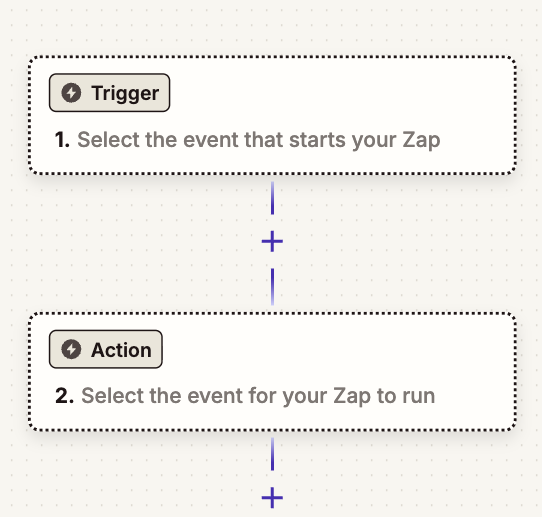
Sign in to your Zap dashboard and click Create to open a blank Zap in the editor. This is where you build workflows by adding a trigger and chaining actions.
You should see something like this:
Set up a trigger
Zaps are made up of triggers and actions. The trigger is the event that starts your Zap. Pick the app you want to trigger from — this example trigger runs when a new file is shared in Slack.
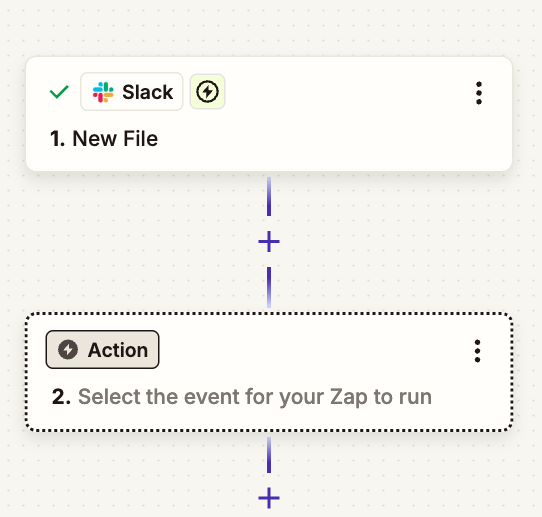
Zapier might prompt you to sign in when connecting certain apps. Some apps need additional account permissions before they can run in your Zap.
Add Speechmatics to your Zap
Next, set up your actions — the events that run after your trigger fires.
Speechmatics provides two actions in Zapier:
For simplicity, this example uses Get Transcript from Audio.
Click the Action box and search for Speechmatics. You should see the following menu:
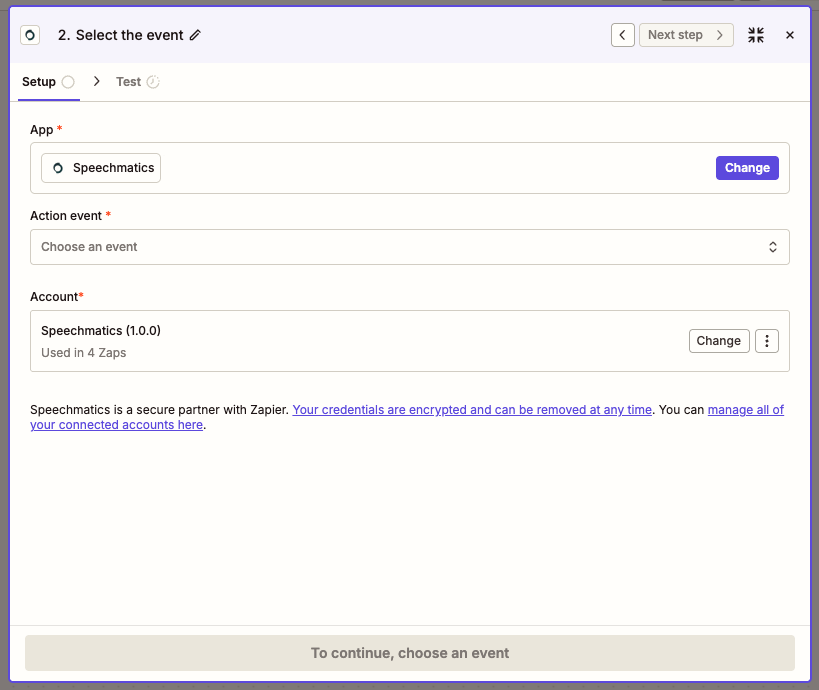
Choose Get Transcript from Audio as the action, then connect your Speechmatics account by pasting your API key into the Account section.
Configure transcription settings
Click on the Configure tab. You should see something like this:
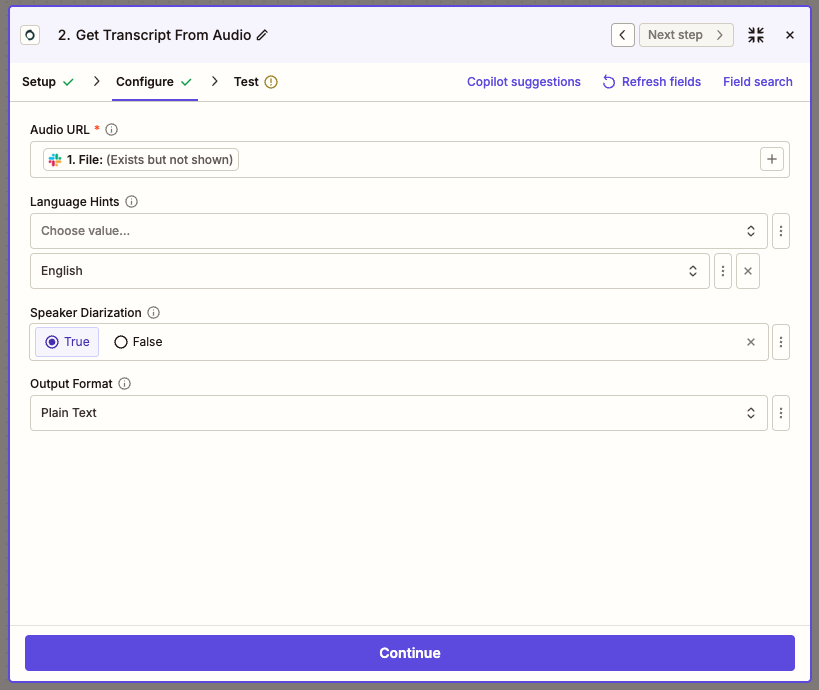
Each trigger has fields you can connect to your action. Connect the trigger's file URL to the Audio URL field on the Speechmatics action. Depending on the trigger app, that URL might be called something like /file or /url — you may need to experiment to find it.
Then configure your transcript output using these settings:
Once you've configured your settings, click the Test tab, then click Test Step. Zapier validates your configuration and runs it.
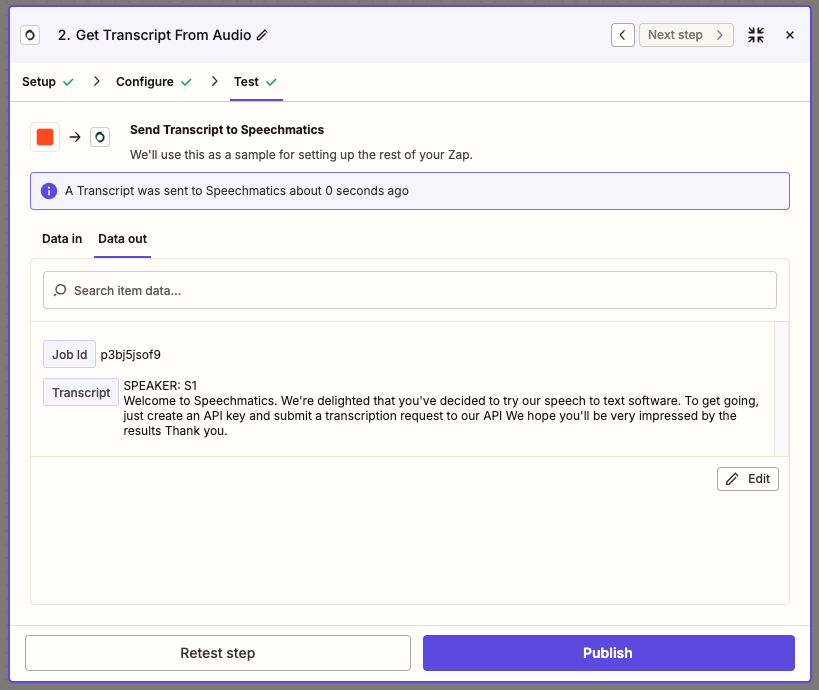
When test succeeds, click Publish — your Zap is now live.
Troubleshooting
Still stuck? See Zapier support or contact Speechmatics.